
RUNA LABS
DOCUMENTATION
GETTING STARTED
TRADING
IDEAS
AUTOMATION
Sections: Set up Bitget
GETTING STARTED
TRADING
IDEAS
AUTOMATION
Set up Bitget
From a new Bitget account to a key connected in Runa, step by step.
Logged in? The interactive version ticks off each step and tests your key before saving it.
Live account
1. Plan your accounts: main account plus two sub-accounts
Runa works best when each kind of trading has its own Bitget account and its own API key. A loss or a margin call in one account then never touches the others, and you always see which money is used for what. Sub-accounts are free.
- Main account: your manual trading, in Runa (OMS, Analyst) or on Bitget itself. Runa key name: 'Bitget Main'.
- Sub-account 'Runa Perps': automated perps trading, such as the Setups you follow and your strategies. Runa key name: 'Bitget Perps'.
- Sub-account 'Runa Shares' (only if you want shares, Bitget's tokenized US stocks). Runa key name: 'Bitget Shares'.
- Runa trades USDT instruments only, so you fund every account in USDT (step 7 shows how to get it).
- No separate spot account is needed: Bitget's unified account holds futures, spot and shares in one account. Shares do need the unified account (step 4).
- Why shares get their own sub-account: in a unified account your shares count as margin for perps, so a losing perps trade could eat into them. In their own sub-account they stay apart.
- You will make one API key for each account (main and every sub-account) and connect each one in Runa. The last step keeps a checklist.
Bitget: sub-account guide
2. Create your Bitget account
Runa trades on your own Bitget account. Your money stays with Bitget; Runa only gets a key to place orders. Sign up through Runa's link: the referral code is filled in for you and gives a trading-fee discount.
- In Runa: Welcome page → '1 Open an account' → 'Open a Bitget account' (1). Or use the button at the bottom of this step: it is the same link.
- On Bitget: enter your email or mobile number (1). Check that 'Referral code' is already filled in.
- Tick that you agree to the User Agreement and Privacy Policy (2), then click Next (3).
- Choose a strong password and enter the code Bitget sends to your email or phone.
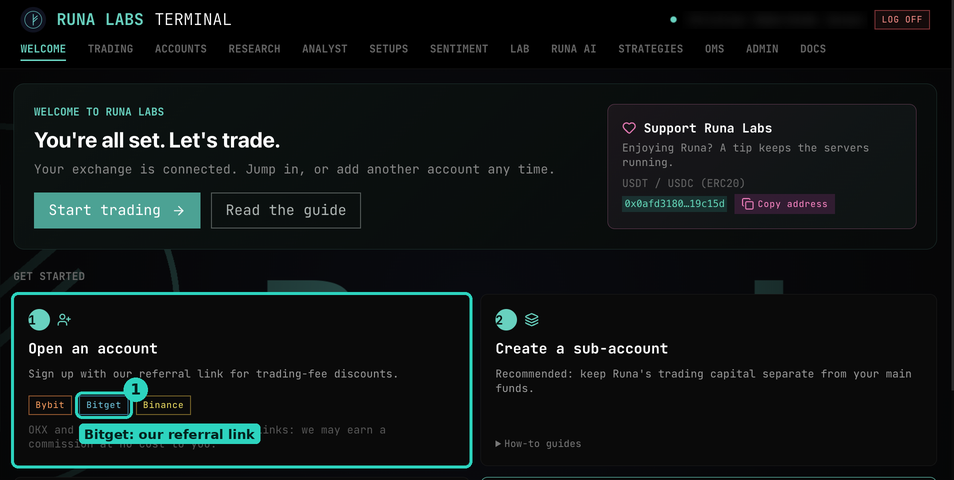
Runa's Welcome page: the Bitget referral link.
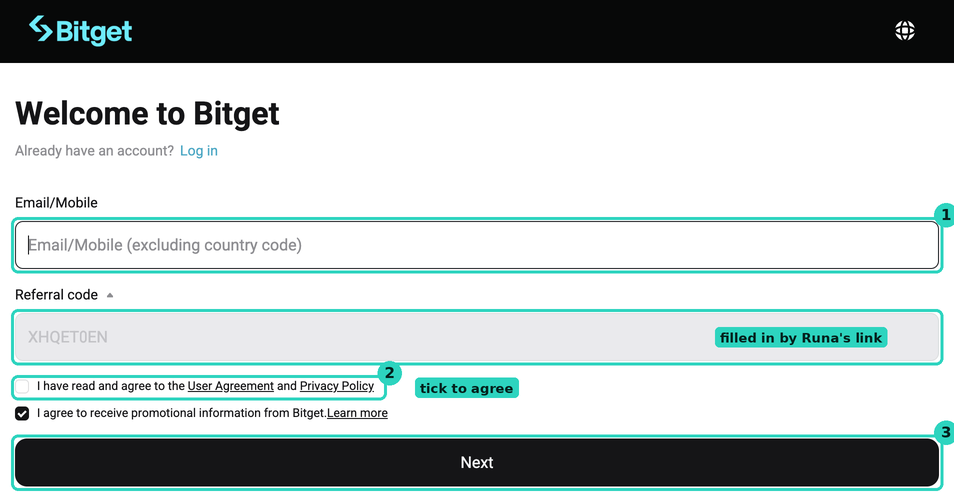
Bitget's sign-up page with Runa's referral code filled in.
Open Bitget sign-up (Runa's referral link)
3. Verify your identity and turn on 2FA
Bitget needs identity verification before you can deposit and trade, and two-factor authentication before it lets you create API keys.
- Profile icon (top right) → Identity verification: follow the steps (ID document + selfie). It is usually approved within minutes.
- Profile icon → Security → Google Authenticator → Configure. Scan the QR code with an authenticator app and keep the backup key somewhere safe. When it shows Enabled you are done.
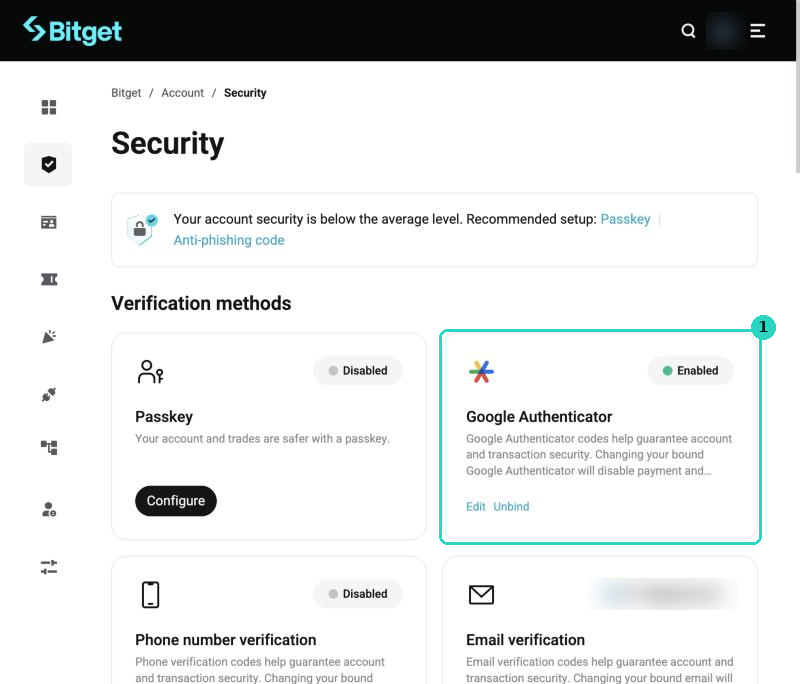
Security page: Google Authenticator must show Enabled.
Open Bitget security settings
4. Switch your main account to unified
Bitget's unified account is one account for futures, spot and shares (tokenized US stocks). Runa works with classic accounts too, but shares need unified. Do this before you create keys: a key made before the switch has to be made again.
- Go to Assets. At the top click 'Upgrade to unified account'.
- Bitget checks you have no open orders or spot / margin positions. Close or cancel them first if needed.
- Click Upgrade. It takes about a minute.
- Sub-accounts are upgraded one by one: you do that for 'Runa Shares' in the next steps.
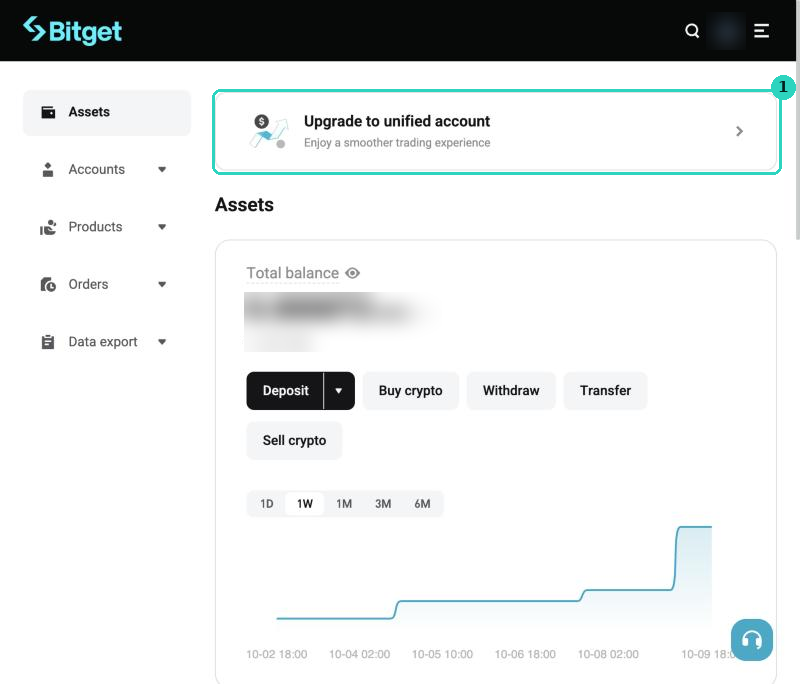
Assets page of a classic account: the upgrade banner at the top.
Bitget: how to upgrade
5. Create the sub-accounts: Runa Perps and Runa Shares
Each sub-account keeps its money apart from the rest of your funds. If something goes wrong, only that sub-account is affected. Sub-accounts are free and you can have up to 20.
- Profile icon → Sub-accounts. Click Create (1).
- Choose Virtual sub-account (2). It needs no extra email or password, and you manage it from your main account. Do not pick General, Agentic or Custodial.
- Sub-account name (3): 'Runa Perps'. Leave 'Create API' off: you make the keys in step 9.
- Click Create (4).
- Want shares? Do it again with the name 'Runa Shares'.
- Back in the sub-account list, 'Runa Shares' must say 'Unified account'. If it doesn't, switch into it (next step), go to its Assets page and click 'Upgrade to unified account'. 'Runa Perps' works either way; unified is recommended.
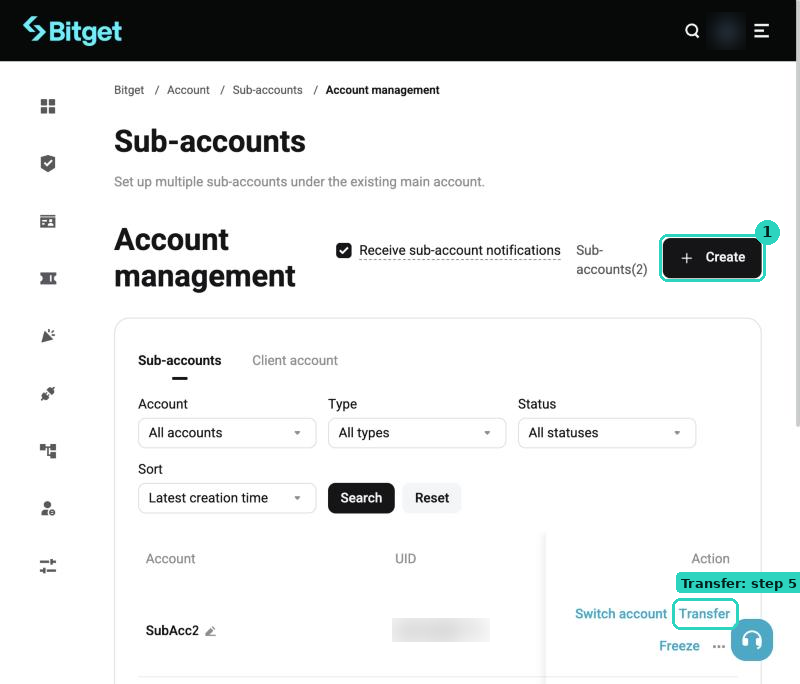
Sub-accounts page.
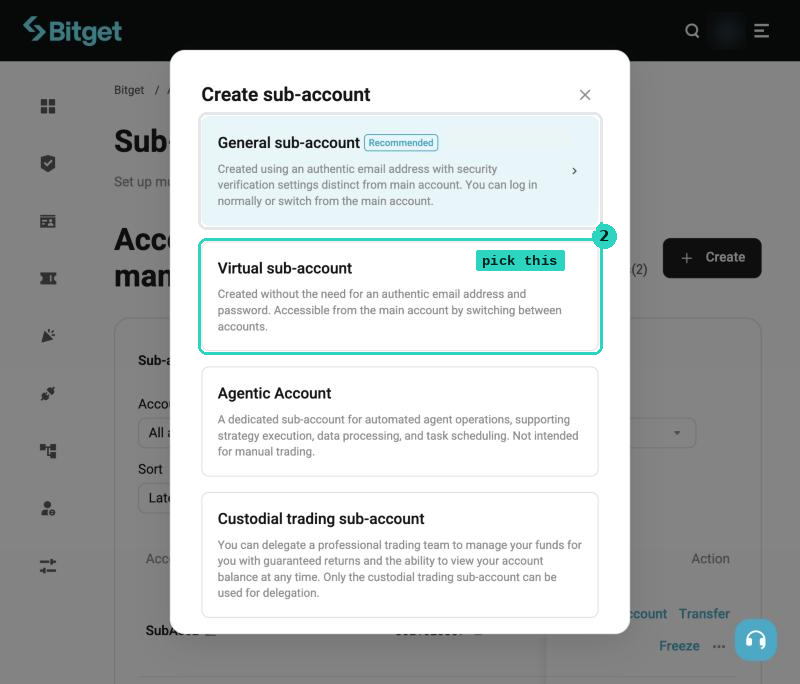
Pick the type.
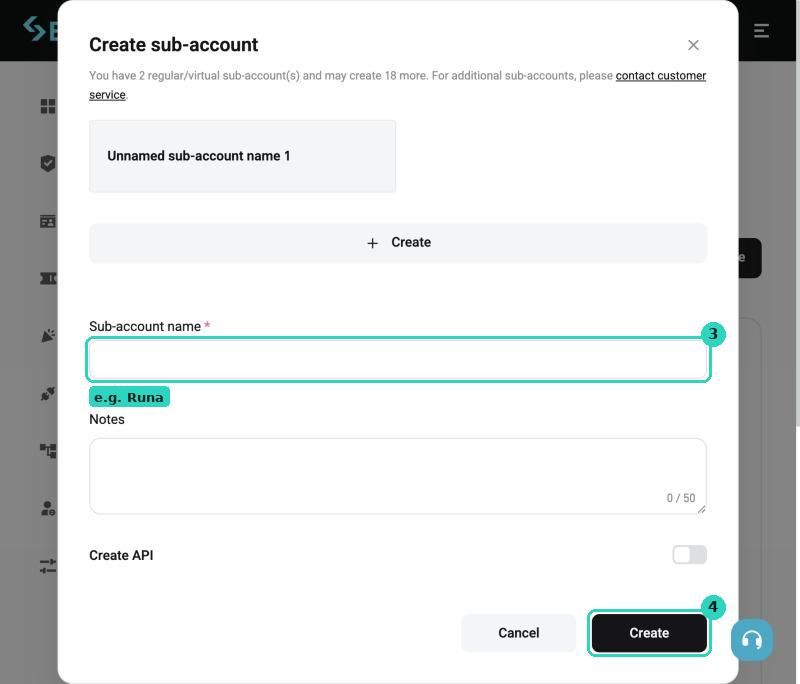
Name it and create.
Bitget: create a sub-account
6. Switching between your main account and sub-accounts
Bitget shows one account at a time, and the switch is easy to miss. You need it to check a sub-account's balance, to upgrade a sub-account to unified, or to see its orders.
- Into a sub-account (for example 'Runa Shares'): Profile icon → Sub-accounts → in its row click 'Switch account'.
- You can tell you are in a sub-account: open the profile icon (top right) and the panel says 'Sub-account' above the name.
- Back to the main account (or to another sub-account): in that panel click the round person icon at the top right (1), then pick the main account (2) in the 'Switch account' window.
- Trade by hand only in the main account. Leave the sub-accounts to Runa's automation, so the numbers in each account stay clear.
- You do not need to switch to create the sub-accounts' API keys: that is done from the main account (step 9).
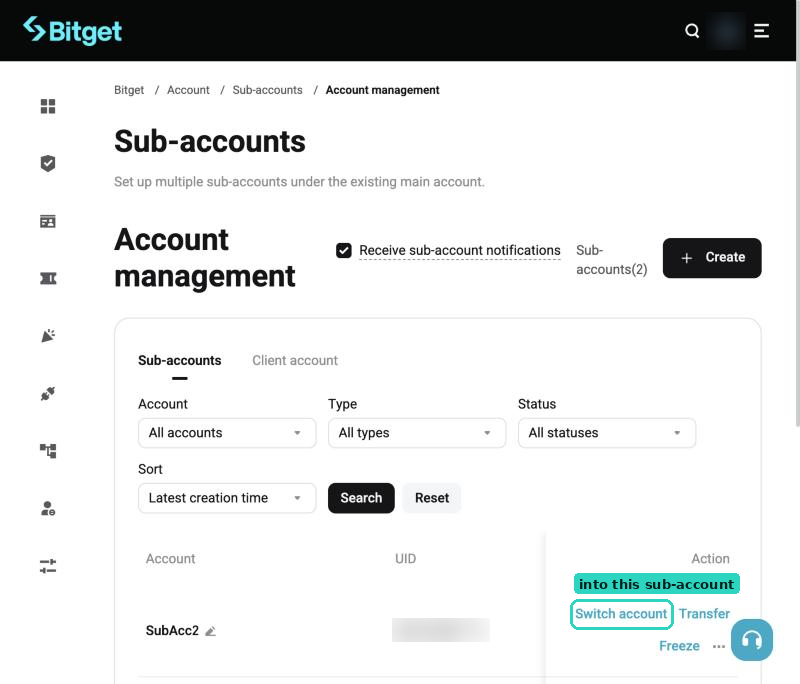
Sub-accounts page: Switch account.
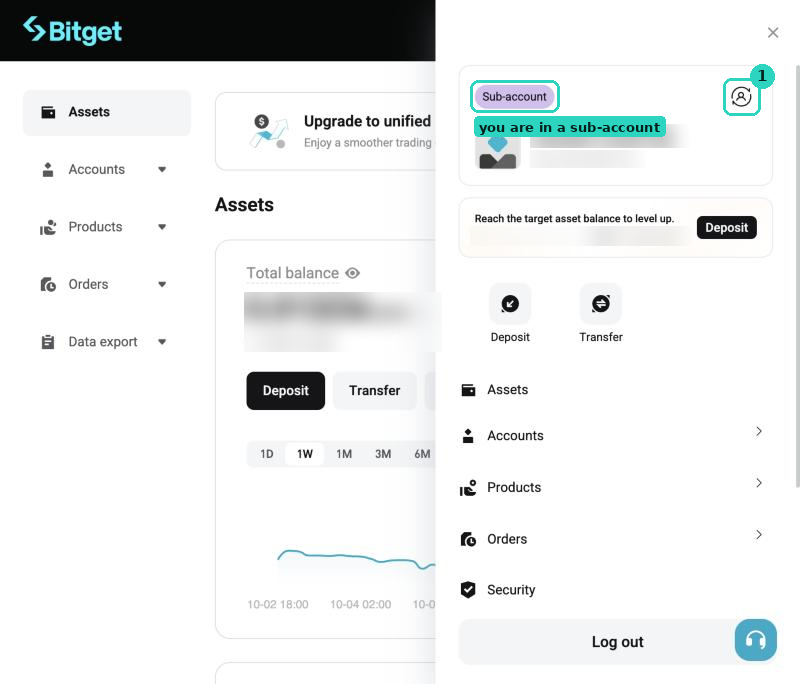
Inside a sub-account: the profile panel says Sub-account.
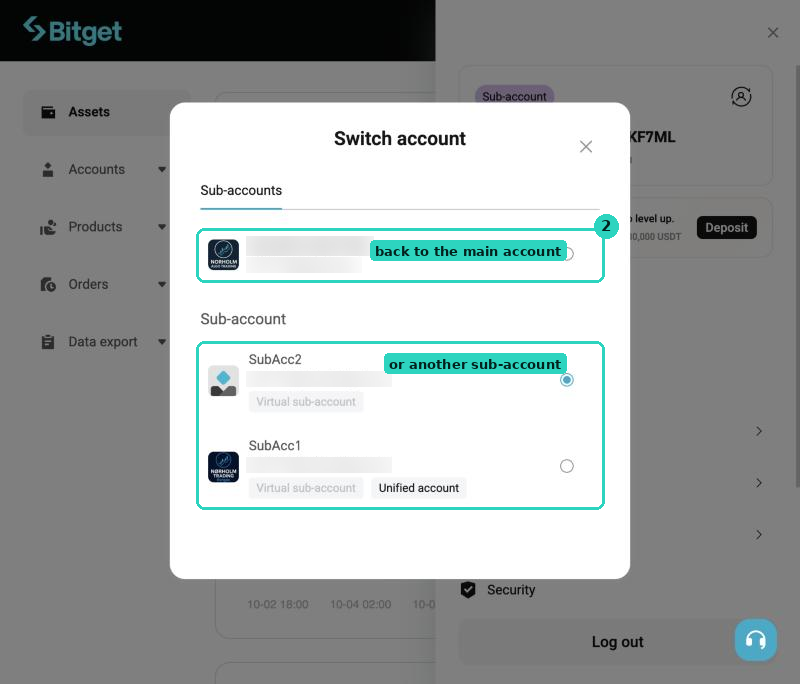
The Switch account window: back to the main account.
Bitget: sub-account guide
7. Get USDT into your main account
Everything Runa trades on Bitget is priced and settled in USDT: perps are USDT-M contracts and shares are bought with USDT. So the money you trade with has to be USDT. Euros, BTC, USDC or other coins are not used by Runa until you change them into USDT.
- Paying with euros or another currency: Buy Crypto (top menu) → Buy & Sell, or Credit/Debit card. Pay: your currency. Receive: USDT. Check the price and fee, then confirm.
- Already have other coins on Bitget (BTC, ETH, USDC and so on): Trade → Convert. From: the coin. To: USDT. Check the rate, then confirm.
- Sending USDT from another exchange or wallet: Assets → Deposit → Crypto, coin USDT. Pick the same network on both sides (for example TRC20 or ERC20): sending on the wrong network can lose the money. Start with a small test amount.
- Check Assets: the USDT must be in the unified account (or in USDT-M Futures on a classic account). If it shows under Funding or Spot instead, move it with Transfer.
Bitget: buy USDT with euros
8. Move funds to the sub-accounts
Runa can only trade what is in the account its key belongs to, in USDT. Transfers between your main account and sub-accounts are instant and free.
- Keep the money for your manual trading in the main account.
- Sub-accounts page → 'Runa Perps' row → Transfer.
- To (1): the sub-account, and the account type it trades from: the unified account, or USDT-M Futures on a classic account (not Spot).
- Coin USDT, then the amount (2). Start small: you can add more any time. Confirm (3).
- Using shares? Do the same for 'Runa Shares' (to its unified account).
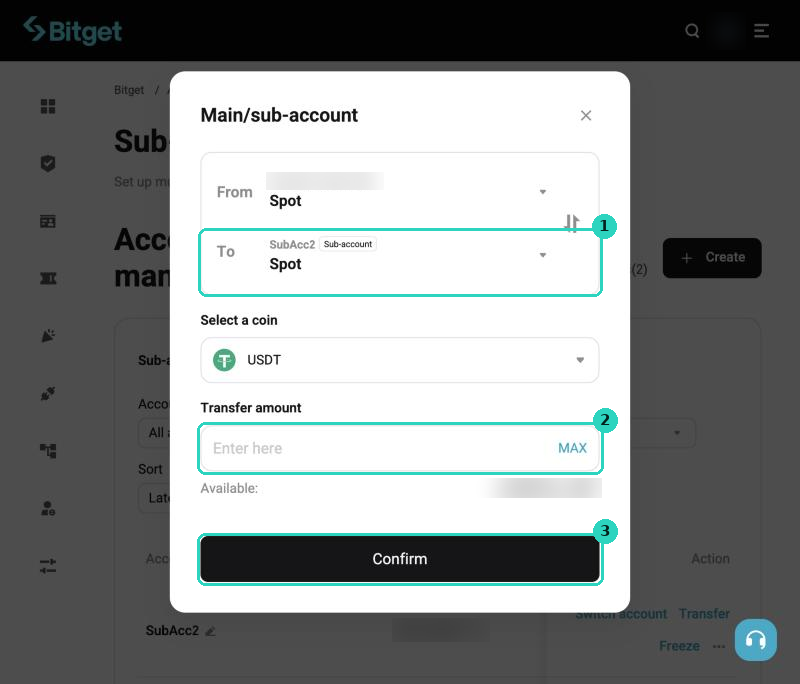
Transfer from the main account to the sub-account.
Bitget: sub-account guide
9. Create an API key for each account
Each key lets Runa place and cancel orders in one account only. It can never withdraw money. You make one key for the main account, one for 'Runa Perps' and one for 'Runa Shares' if you use it.
- Profile icon → API keys. In the account box (1) pick the account: start with the main account, then repeat these steps for each sub-account. Click Create API key (2).
- Choose System-generated API key (3).
- Note (4): 'Runa Main', 'Runa Perps' or 'Runa Shares'. Passphrase (5): make one up, 8 to 32 letters and numbers, and write it down. Runa needs it and Bitget cannot show it again.
- Permissions: Read-write (6).
- Unified account: tick Trade (7, required) and Manage (8, lets Runa change your leverage; it can move funds between your own Bitget accounts but never withdraw).
- Classic account instead: under Futures tick Orders and Holdings (7). Leave Wallet → Transfer unticked.
- Leave 'Bind IP addresses' empty (Runa trades from cloud servers whose addresses can change).
- Click Next, enter your 2FA code. Bitget shows the API key and the secret key: copy both now, with your passphrase. The secret key is shown only once.
- Tip: connect each key in Runa (last step) right after you make it, then come back for the next one.
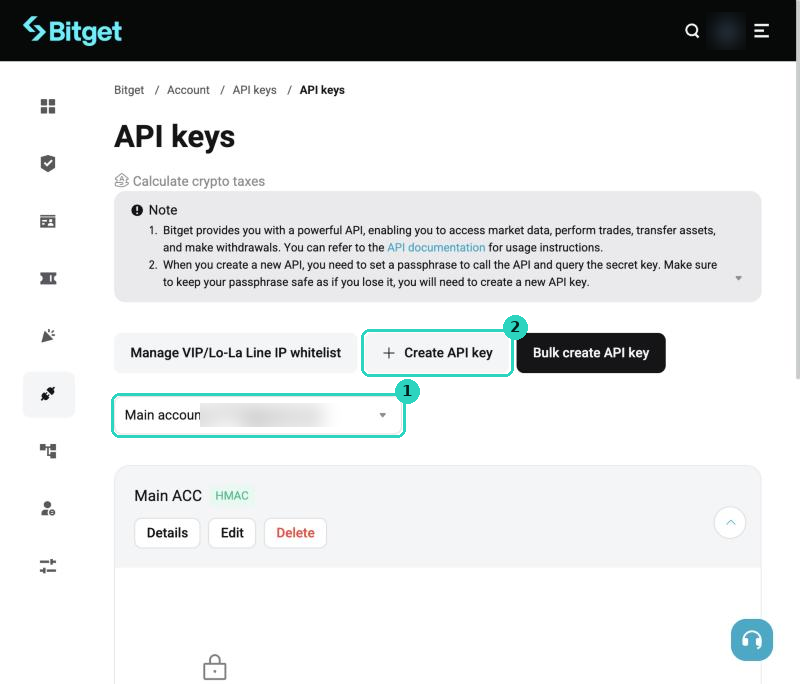
API keys page: pick the account first.
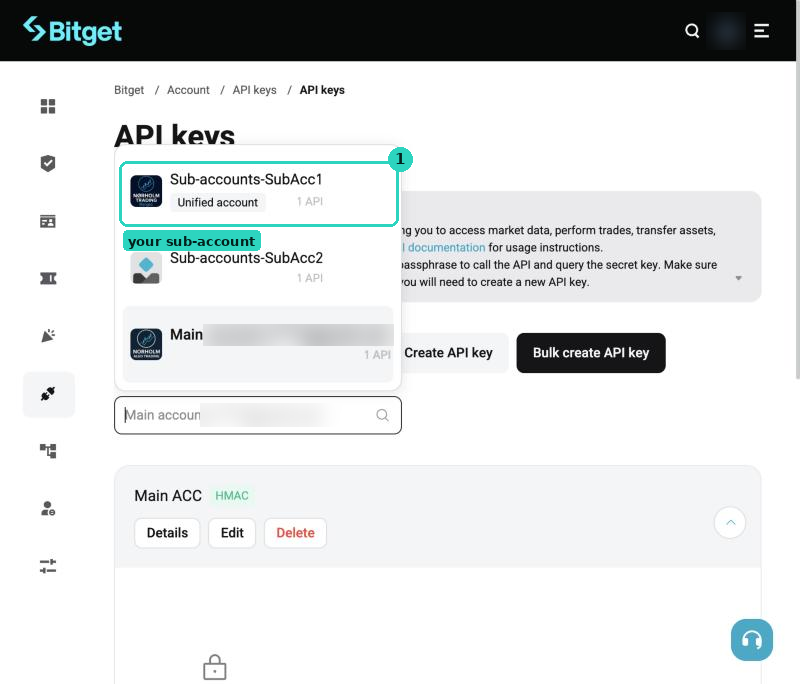
Choose the account the key is for.
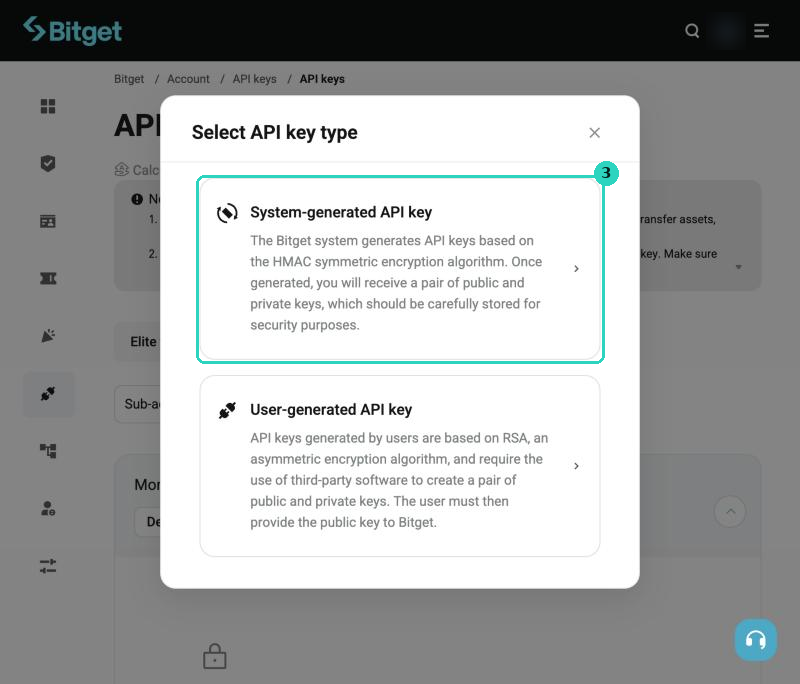
System-generated API key.
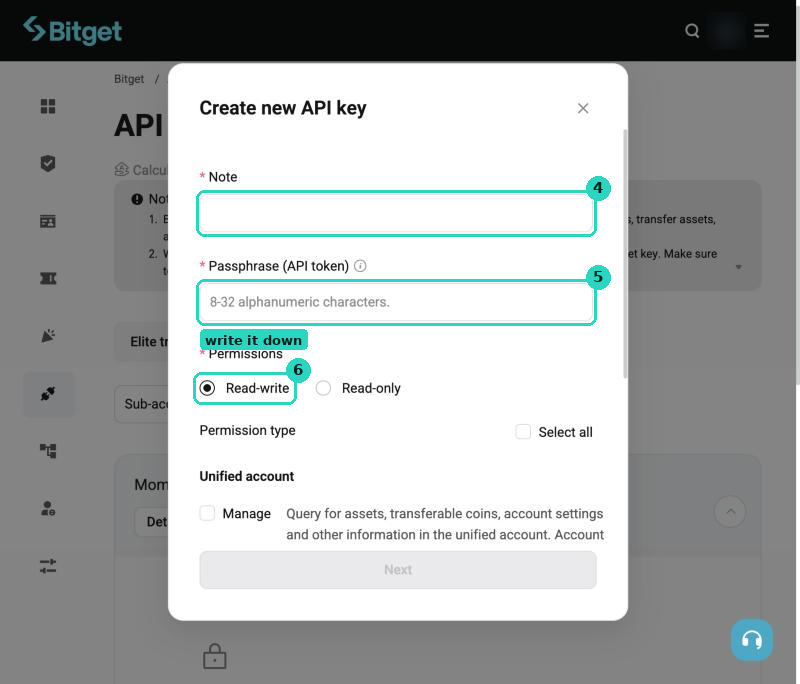
Unified account: note, passphrase, Read-write.
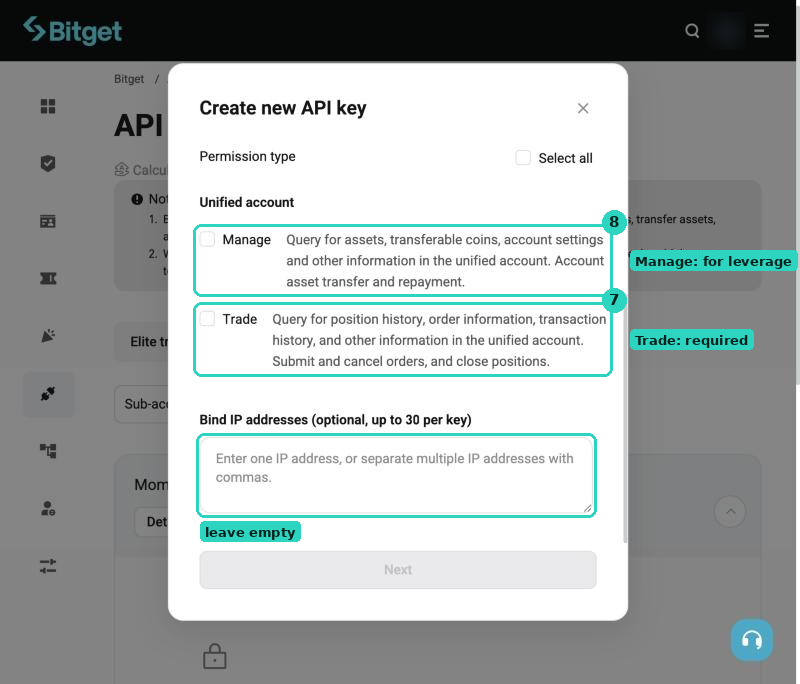
Unified account: Trade and Manage.
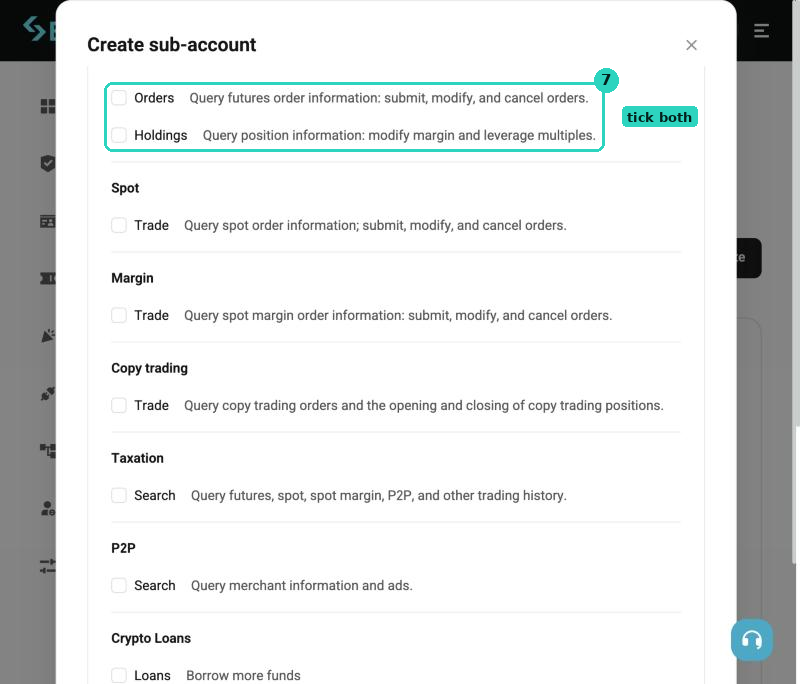
Classic account instead: Futures Orders and Holdings.
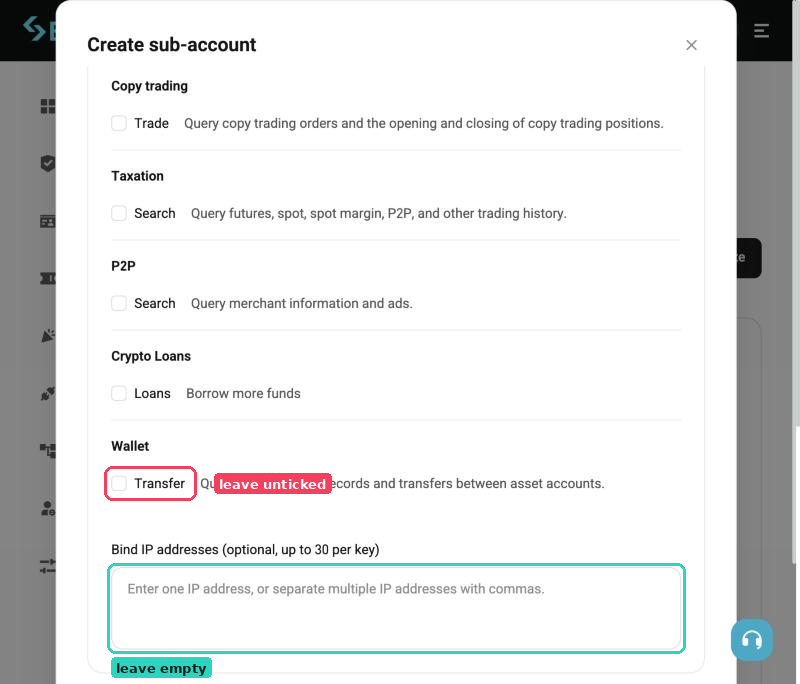
Classic account: leave Wallet Transfer and the IP box empty.
Bitget: API key guide
10. Connect each key in Runa
Connect one key per account: 'Bitget Main', 'Bitget Perps' and, if you trade shares, 'Bitget Shares'. Accounts → Connect New Account → Exchange: Bitget. Paste the API key, the secret key and the passphrase, give the account its name and save. Runa tests the key with Bitget first. Then set each account's MAX EXPOSURE.
Demo account (test money)
Steps 2 and 3 as above, then (one demo account is enough):
a. Switch to demo trading
Bitget's demo mode trades with test money, so you can try Runa without risk. Demo keys are separate from live keys and only work in demo.
- On Bitget, switch to Demo trading (Profile icon → Demo trading, or the demo switch on the trading page).
- Bitget gives the demo account test USDT. Nothing needs to be transferred.
Bitget: demo trading (API guide)
b. Create a demo API key
The demo key lets Runa trade the demo account.
- Still in demo mode: Profile icon → API keys → Create API key → System-generated API key.
- The form is the same as for a live key: Note 'Runa', a passphrase you write down, Read-write, and Trade (plus Manage) or Futures Orders and Holdings.
- Copy the API key, the secret key and the passphrase. The secret key is shown only once.
Same permissions as a live key.
Bitget: demo trading (API guide)
Connect it like a live key, with 'Demo Account' ticked.
If the key test fails
- Passphrase wrong: it is the passphrase you made up for the key, not your Bitget password.
- Key not recognised: check you copied it fully, and that a demo key is connected as demo.
- Missing permission: edit the key on Bitget and allow trade (read and write).
- IP not allowed: remove the linked IP address from the key.
- Account upgraded to Unified after the key was made: create a new key.
- Shares key on a classic account: upgrade 'Runa Shares' to unified, then create a new key.
Runa never asks for withdrawal rights and never holds your money. Keep the secret key and passphrase private: anyone with them can trade that account. Screenshots from Bitget's web site in October 2026; Bitget changes its pages now and then.
Disclaimer: The content provided by Runa Labs is for informational and educational purposes only and does not constitute financial, investment, or trading advice. Runa Labs is not a registered financial advisor and does not hold any financial licenses. All trading and investment activities involve significant risk of loss. You are solely responsible for your own financial decisions. The Service is a technical execution dashboard for sophisticated, eligible traders. It is not available to U.S. persons or to residents of sanctioned or restricted jurisdictions; see the Terms of Service for the current list.